
If you also see the same old shows whenever you open Netflix, believe me, you are not alone. The best part is that you no longer need to keep switching VPNs to change Netflix regions.
However, many VPNs tend to slow down, get blocked by Netflix, or degrade the streaming experience. That is why users look for easier ways to access Netflix libraries from other countries without relying on a VPN.
In this guide, we will share excellent methods to easily change your Netflix region without a VPN. Let’s walk through the steps.
Is it possible to change the Netflix region without a VPN?
Yes, it is certainly possible because Netflix identifies your location primarily through your IP address; however, other factors such as your account region, usage behavior, and DNS settings also play a role. This is why methods like Smart DNS are highly effective. That said, it is important to note that these methods do not always work 100% of the time, as Netflix constantly updates its security measures.
Use Smart DNS to Change Netflix Region
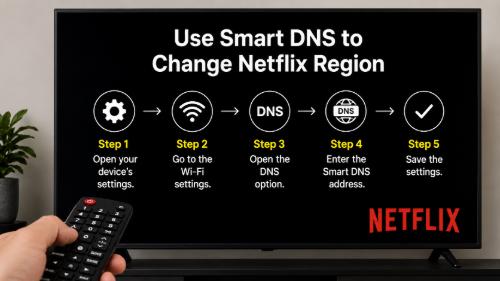
If you are frustrated by the slow speeds associated with VPNs, Smart DNS could prove to be a better option for you. This is because Smart DNS does not encrypt internet traffic; its function is simply to alter DNS information, making it appear to Netflix as though you are accessing the service from a different country.
I recall using Smart DNS on my Android TV a while back; there was virtually no buffering, and that was the aspect of the process I appreciated the most.
How to Set Up Smart DNS
- First, open your device’s settings.
- Then, go to the Wi-Fi settings.
- Open the DNS option.
- Enter the Smart DNS address.
- Save the settings.
- After that, restart Netflix.
Doing this often makes a new Netflix library available.
Clear Browser Cache and Cookies
You might consider this a simple method, but it has proven useful for many users.
Netflix stores browser cookies and old location data; clearing your cache and cookies can often lead to the app displaying fresh recommendations on your device. I tried this process on my Chrome browser, and the recommendations began to look different from before.
Steps to Clear Netflix Cache
- First, open the browser settings.
- Then, go to the privacy section.
- Next, click on “Clear browsing data.”
- Delete the cookies and cache.
- After that, restart the browser.
This process does not always change the region entirely, but it helps reveal certain hidden recommendations.
Change Netflix Profile Language
Many users are unaware of this trick; however, changing the Netflix profile language can significantly alter recommendations and the titles available. Users who watch foreign content and anime, in particular, find this method useful.
For example:
- Korean language → K-drama suggestions
- Japanese language → Anime recommendations
It isn’t a magic trick, but people use it because it often yields excellent results.
Try Using Mobile Data Instead of WiFi
It might seem like an unusual step, but it has often been observed that mobile networks and broadband networks yield vastly different results; I have personally noticed instances where certain titles didn’t appear on Wi-Fi, yet different recommendations showed up when using mobile data.
So:
- Log out of your Netflix account.
- Turn on your mobile data.
- Then, reopen Netflix.
Some users believe that doing this completely changes the library recommendations.
Is It Safe to Change Netflix Region?
Using the process described above is generally considered completely safe. Netflix typically only displays a VPN detection warning, and while the risk of a permanent account ban is extremely low, it is still advisable to avoid unsafe tools and unknown websites for the sake of security.
Final word
I hope the information provided above has proven useful to you. If you wish to change your Netflix region without using a VPN, I have outlined some working methods above, so give them a try. Most importantly, avoid unsafe free tools and stick to reliable methods.