
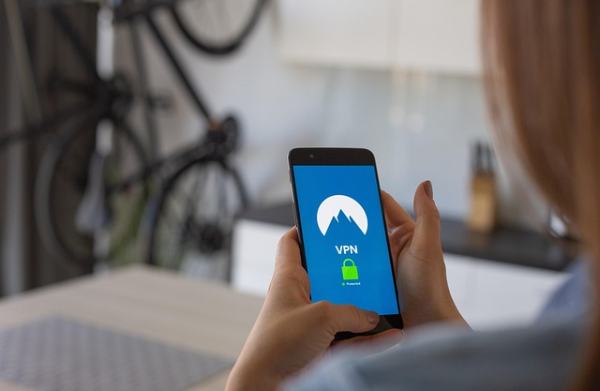
Nowadays, almost everyone uses a VPN (Virtual Private Network) on their Android device. It makes your internet connection completely secure, but sometimes, using a VPN can cause the internet to become very slow on your device, or some apps may not work properly.
In such situations, you need to turn off the VPN. If you also want to turn off your VPN and are wondering how to do it, then this post is very helpful for you. Let’s learn how to turn off a VPN on Android.
Turn off the VPN from Quick Settings
The method described below is the easiest way to turn off the VPN, and I often use this method to turn it off.
Steps
- First, turn on your phone.
- Then, swipe down from the top of the screen.
- Find the VPN icon in the Quick Settings.
- Tap on the VPN icon.
- Then, tap on Disconnect or Turn Off.
That’s it! Your VPN will be turned off, and you’ll be able to use the internet at full speed.
Turn off the VPN in Android settings
If you don’t see the VPN option in your Quick Settings, you can easily turn off the VPN from your phone’s settings.
Steps
- Open your phone’s Settings.
- Go to Network & Internet or Connections.
- Tap on the VPN option.
- Tap on the VPN that is currently active on your device.
- Then tap Disconnect.
Your VPN will now be turned off.
How to turn off VPN from the VPN app
Keep in mind that every VPN app has an option to turn off the VPN, which will also disable your VPN connection.
Steps
- Open the VPN app on your phone.
- You will see a Disconnect/Turn Off button on the home screen.
- Tap on that button.
- The VPN will then be turned off immediately.
This method is considered the easiest and safest.
Turn off the VPN from the notification panel
I’ve noticed that on some Android phones, the VPN connection appears in the notification bar. You can turn it off from there.
Steps
- Swipe down from the top of your mobile screen.
- If your VPN is active, you’ll see a notification that says “VPN Connected.”
- Tap on that notification.
- Then, tap on “Disconnect.”
This method is considered the fastest.
Turn off VPN Auto Connect on Android
Many VPN apps often have an auto-connect feature enabled, which automatically connects the VPN. Here’s how to turn it off:
Steps
- Open your phone’s Settings.
- Go to Network & Internet > VPN.
- Tap on the name of your VPN app.
- Turn off the “Always-on VPN” option.
- If your device has “Block connections without VPN” enabled, turn that off as well.
Now your VPN will not connect automatically.
How to find out if the VPN has been turned off?
We occasionally switch off our VPN by hand, however it’s still unclear if the VPN has been turned off. As a result, you can quickly determine whether your VPN is actually disabled on your phone using the straightforward techniques we’ve included below.
Check for the VPN icon in the status bar
When your VPN is active, a small VPN icon appears in the status bar at the top of your mobile screen. If you don’t see this icon, it means your VPN is turned off.
Check the notification panel to confirm
When the VPN is active, there is always a notification in the notification panel. If you swipe down from the top of your phone screen and don’t see a notification indicating that the VPN is connected, then you can assume that your VPN is turned off.
Open the VPN app and check the status
Open the VPN app you installed. If you see “Disconnected,” “Not Connected,” or “Off” written clearly within the app, it clearly indicates that your VPN is turned off.
Check the VPN status in Android Settings
Check your phone’s Settings > Network & Internet > VPN. If you don’t see any VPN connected or it says “Disconnected,” then your VPN is completely turned off.
Using the steps I’ve described above, you can check whether the VPN is turned off on your Android device.
- VPN Tools
Conclusion
In my opinion, turning off a VPN on an Android device is quite easy; you just need to know the right way. I usually turn it off easily from Quick Settings, Settings, the VPN app, or the Notification Panel. The most important thing to remember is to never forget to disable auto-connect, otherwise, your VPN might turn on again automatically.